Set Up Your Site Brand, Logo, Icon, and Languages
Visitors often notice the site name, header, browser icon, and language before they read a product specification. Set those basics first so articles, product pages, and future theme changes present one recognizable brand.
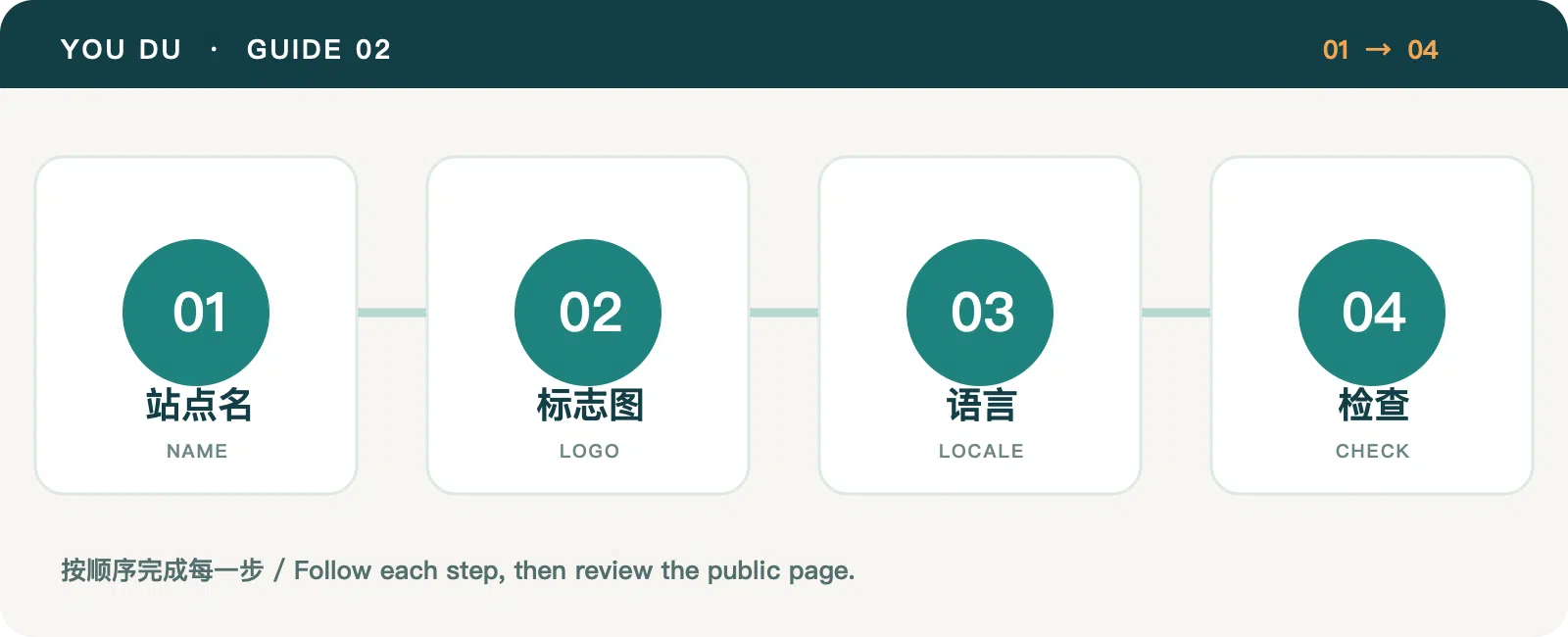
1. Create a small brand information sheet
Decide on a public site name, a shorter header name, the people you serve, and a one-sentence explanation of the site. The site name appears in page and organization information. The short name keeps a long company name from overwhelming the header; it should still be recognizable.
In Settings → General, enter both names and the homepage SEO title and description. Explain whom the site helps and what it offers in ordinary language. After saving, open the homepage and compare the browser title, header, and page summary.
2. Prepare a logo and a square icon
The header logo and site icon have different jobs. A logo must remain clear beside navigation; the icon must remain recognizable at browser-tab size. The admin lets you select separate images from the media library. A 512×512 source image is a good starting point for the icon, which must be at least 48 pixels on each side. Check the public image URLs after selecting the assets.
Use artwork you own or are authorized to use. A full company name rarely works inside a tiny icon, and another company's mark should not be copied.
3. Review languages and regional currencies
In Settings → Languages, review the enabled locales and their currencies. A Chinese and an English page should each make sense to its own reader: translate the title, body, action labels, and contact details rather than just the heading. A locale's currency does not itself create a price; store prices still depend on product pricing and purchase settings.
Check the translation status of each important post and page. A translated heading with a body left in another language creates a poor reading and search experience. If you cannot maintain a full language version yet, publish the languages you can keep current.
4. Verify three public pages
After saving, check the homepage, an article, and Contact. Look at the short name, logo proportions, icon, language switch, SEO title, and image availability. If the public site has not caught up with the editor, wait for the new published version and check again.
With the brand and languages ready, use the bilingual post workflow to publish your first articles.
Category: Site Guides
Tags: Platform Guide · Brand Setup · Multilingual