Images and SEO: Uploads, Alt Text, and Public-Page Checks
Images can clarify articles and products, but they also cause one of the most visible post-launch problems: a page loads while the images do not. Combine media, alt text, and page SEO in one review routine to avoid repeated fixes.
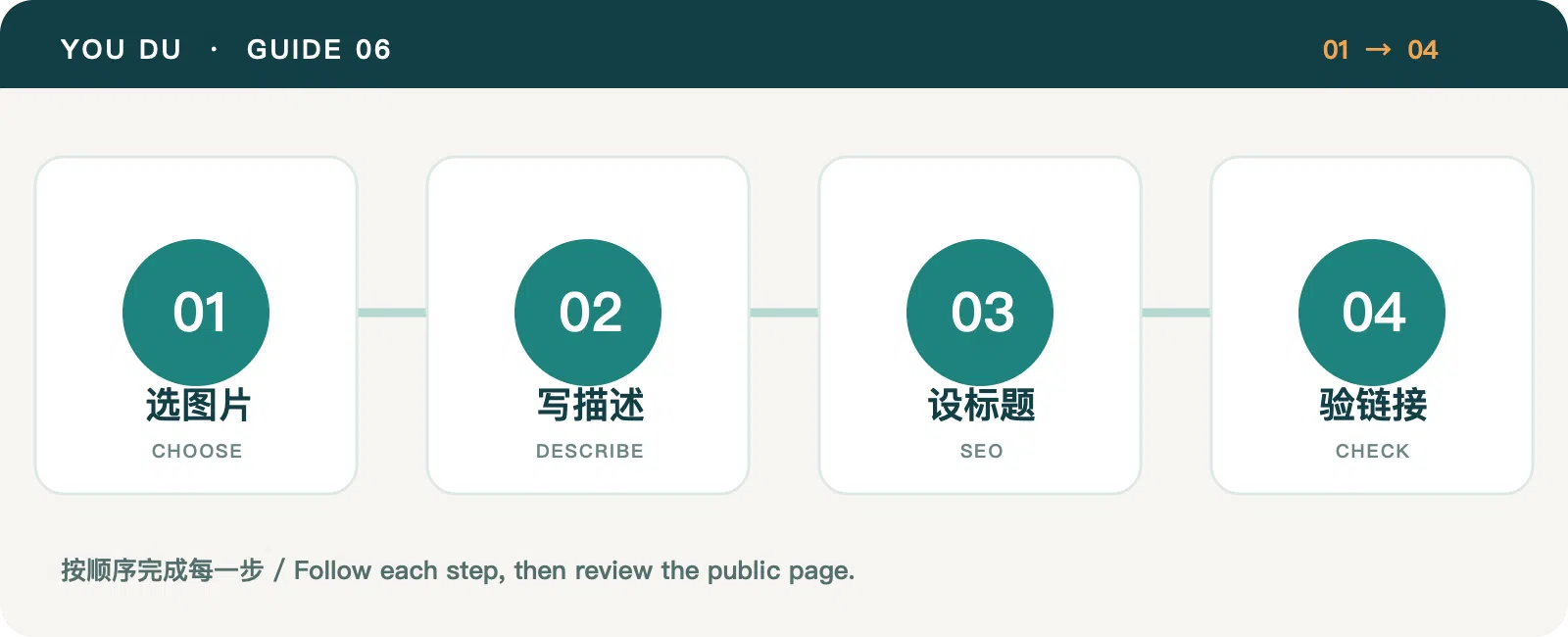
1. Choose images for a clear job
A homepage banner explains the main offer, an article cover signals its subject, and a product image must show the actual item and important details accurately. Avoid using one generic illustration for every product or copying images from another company's site. Start with a clear source image and consider how it will crop on mobile.
Upload it in Media, then give it a useful name and description. The system generates image sizes for different placements and may optimize them later. A successful upload does not mean every public page has updated; wait for publishing before the final check.
2. Write alt text that describes the image
Alt text helps a reader understand what a missing or unseen image conveys. A machine photo might say “feed and forming section of a corrugated-board line”; a diagram might say “four steps from topic selection to publication.” Avoid repeating broad search terms or using “image 1” as the only description.
Decorative art can be described briefly. If an image carries specifications, a process, or a comparison, explain the same essential information in the surrounding text. Important facts should not exist only inside the graphic.
3. Align the SEO title with the page
Choose one primary intent for each page, then write a title, summary, readable URL, and section headings around it. A title should tell a reader what they will find; a description should summarize the actual page. Write separate titles and summaries for Chinese and English rather than leaving the English page with a Chinese SEO description.
Use internal links when they genuinely help a reader move forward, with link text that names the destination. If an old URL must change, redirect it to the relevant new page rather than silently breaking existing links.
4. Verify the public version
Open the published page and check the cover and body images, asset domain, and mobile layout. Review the browser title, page heading, language switch, and share link. A correct admin preview does not prove that the public image URL works.
If an image returns 404, open its URL separately. If that fails, check the media domain and publication state. If the image URL works but the page is stale, check caching and whether a newer page version has published. Continue with post-publication review.
Category: Site Guides
Tags: Platform Guide · Media & SEO · Content Publishing